API keys
Create API keys, choose which projects each key reaches, rotate with an overlap window, and revoke at once.
An API key lets your app report spending to Solwyn. A key belongs to your account and works only for the projects listed on it. Every app names its project with SOLWYN_PROJECT (a project name or its proj_ id), and Solwyn refuses a project the key does not reach.
Keys have the shape solwyn_sk_ followed by 64 lowercase hexadecimal characters. Each key has a scope, fixed when it is created or rotated: Full access (the default, needed for SDK reporting and budget enforcement) or Read-only (costs and project status, no writes). Keys expire one year after they are created or rotated.
Keys that start with sk_proj_ no longer work. Create a new key and set SOLWYN_PROJECT beside it. The SDKs need Python solwyn 0.11.0 or newer, or @solwyn/sdk 0.4.0 or newer.
Get your first key
You need a verified Solwyn account. About 2 minutes. The Free tier is fine — enforcement starts in alert-only mode, so calls are never blocked.
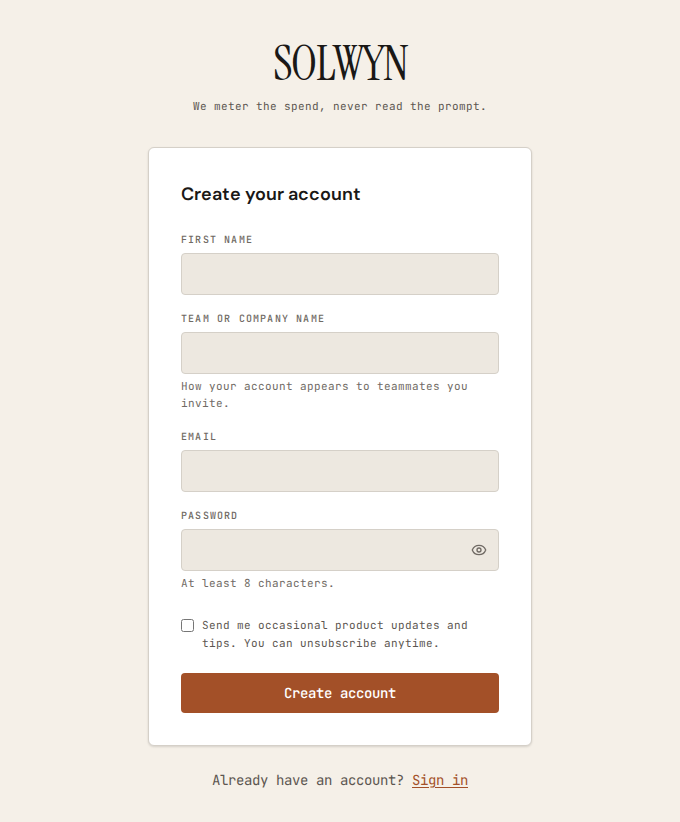
Sign up
Enter your first name, your team or company name, your email, and a password. Your team name becomes how the account appears to anyone you invite later.
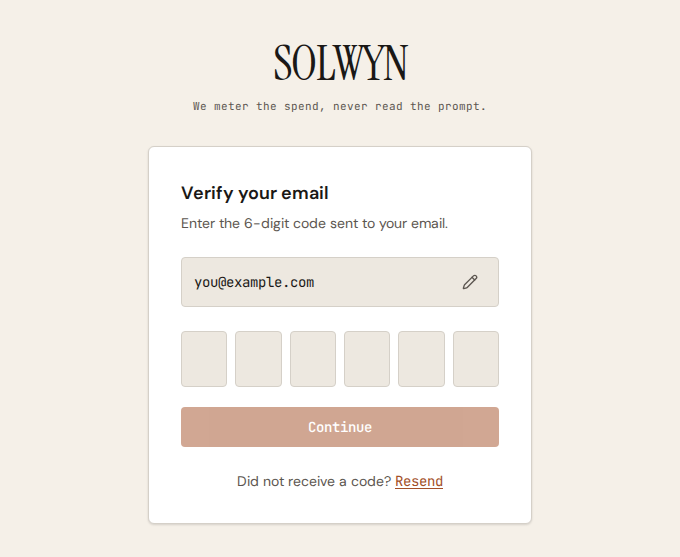
Verify your email
We email a 6-digit code — there is no link to click. Type the code into the six boxes and continue. You can resend the code after a short cooldown.
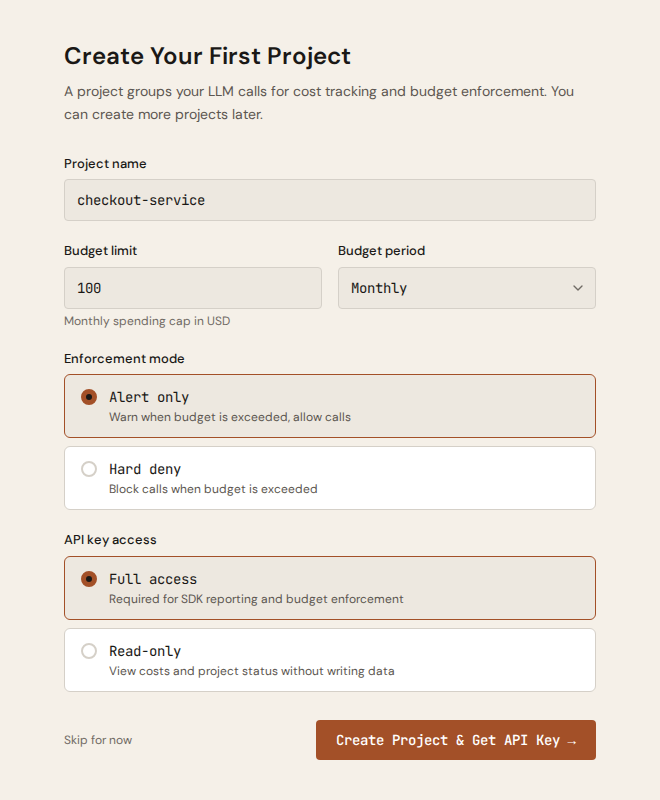
Create your first project
The onboarding wizard's first step sets the project name, budget limit ($100 by default), period (Monthly by default), and enforcement mode — all in one form. Creating a project and setting its budget is a single action.
Every tier can select Hard deny — the Free tier includes one hard-cap project. On Free, the period is monthly only. See Budgets for what each mode does at the limit.
Copy your key: it is shown once
When the project is created, its first key appears once, with the project's
name. That key holds only this project. Use Copy for the raw key, or
Copy full .env for ready-to-paste SOLWYN_API_KEY=… and
SOLWYN_PROJECT=… lines.
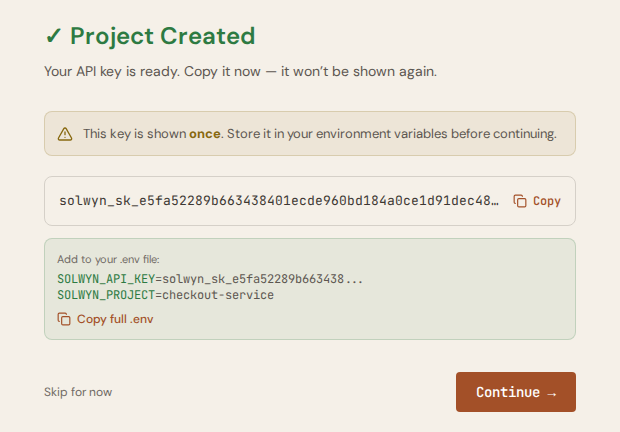
The full key is shown once, at creation. Store it now (for example as
SOLWYN_API_KEY in your secret manager) before continuing. Afterwards
only its prefix is shown.
Settings > API keys
Open Settings and select API keys. The page lists every live key in the account:
| Column | What it shows |
|---|---|
| Name | The key's name, its prefix (solwyn_sk_ and 16 characters), and (read-only) for a read-only key. |
| Projects | The projects the key reaches. A red dot marks a project with a hard limit. |
| Created | The date, a CLI or Dashboard badge, and who created it. A key made by a coding agent through the CLI says so. |
| Expires | The expiry date. It turns amber within 30 days and red once the key has expired. A rotated key shows when it stops. |
| Last used | The last day Solwyn saw the key. |
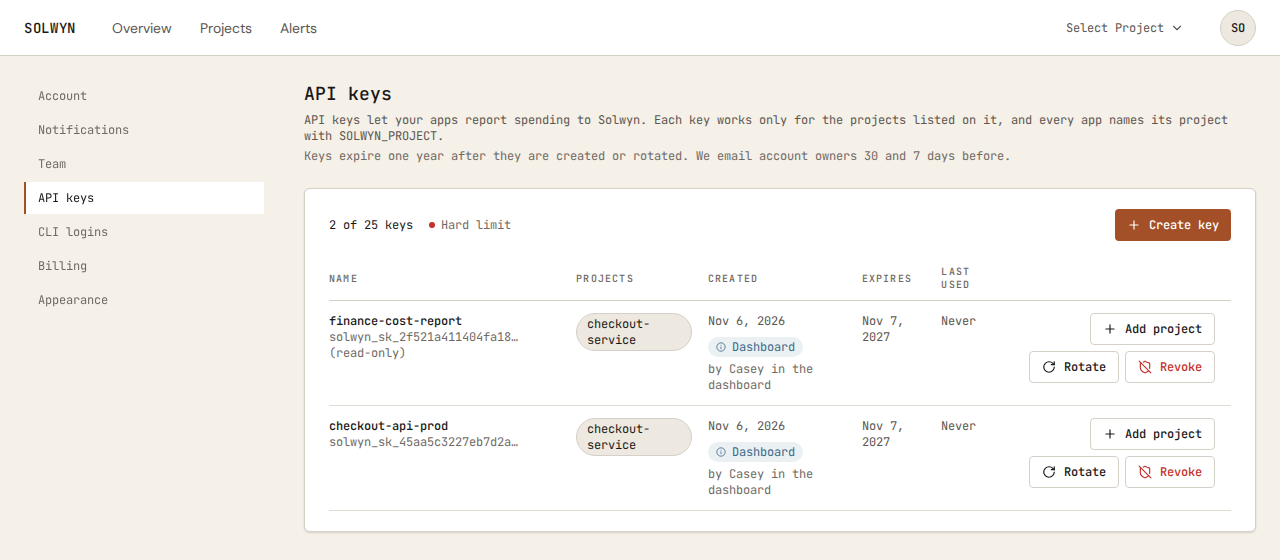
The header shows how many keys the account has against its plan's limit (see Plans and billing). A key in its rotation overlap window does not count; its replacement does.
Owners and admins can change keys. Other members see the list only.
Create a key
- Select Create key.
- Pick the project. A new key holds one project.
- Optionally name it (the default is the project's name) and pick the scope.
- Create. The key is shown once, with
SOLWYN_API_KEYandSOLWYN_PROJECTlines to copy. Store it before you select Done.
The CLI creates keys too: solwyn keys create. Creating a project in the dashboard or with solwyn projects create also creates its first key.
Give a key another project
One key can reach several projects, for example one service that reports to more than one project. Only the dashboard can add a project to a key; the CLI cannot widen a key.
- On the key's row, select Add project and pick the project.
- Read the dialog. It lists every project anything using the key will be able to spend from.
- Confirm.
If any project on the key has a hard limit, the dialog warns in red: a key that reaches an alert-only project as well as a hard-limit project could keep spending in the alert-only one after the hard-limit project is blocked. Each app still chooses one project with SOLWYN_PROJECT.
A project with Only accept keys dedicated to this project turned on refuses to be added to a key that already holds another project. See Dedicated keys.
Remove a project from a key
Select the × on a project in the key's Projects column, then confirm. Services using that key with SOLWYN_PROJECT set to that project stop making AI calls until they get a new key or the project is added back. This applies on every project, hard limit or not.
A key keeps at least one project. To take away the last one, revoke the key. The CLI does this too: solwyn keys remove-project KEY_ID --project <project> (solwyn keys list shows the key's id).
Rotate a key
Rotation creates a replacement with the same projects and keeps the old key working for an overlap window, so you can cut over without downtime.
- On the key's row, select Rotate.
- Pick the overlap: Within the hour (1h), Today (24h), This week (72h, the default), Slow rollout (7d), or Right now (no overlap, for a leaked key). Optionally change the scope.
- Rotate. The replacement is shown once. Store it before closing.
- Deploy the new key. The old key's row reads Replaced. Stops with the time it stops working.
With Right now, the old key stops at once and is treated as revoked. Apps still using it are refused until they switch to the new key: on a project with a hard limit, or any hard cap on a model, provider, agent run or tag, their AI calls are blocked; on an alert-only project with no hard cap, an app that had already started keeps making AI calls, but Solwyn doesn't see that spend. Right now stops a leaked key; it does not keep metering uninterrupted. For that, pick an overlap and deploy the new key before it ends. The CLI drives the same mechanism with solwyn keys rotate KEY_ID --grace-seconds <seconds>.
Revoke a key
For a leaked key you will not replace, or one you no longer need:
- On the key's row, select Revoke.
- Type the key's name to confirm.
- Revoke. Every app using the key stops reporting to Solwyn at once. This cannot be undone.
What happens to those apps' AI calls depends on each project. On a project with a hard limit, or with any hard cap on a model, provider, agent run or tag, their calls are blocked. On an alert-only project with no hard cap, their calls keep running, but Solwyn no longer sees that spend. Rotating with Right now has the same effect on apps still holding the old key; only a rotation with an overlap, and a deploy of the new key before the overlap ends, avoids the gap.
Expiry
Keys expire one year after they are created or rotated. Solwyn emails the account's owners 30 days and 7 days before a key expires. Rotate the key before then; the replacement starts a new year.
An expired key is refused like a revoked one: blocked on projects with a hard limit or hard cap, unmetered on alert-only projects with none.
Dedicated keys
Each project has the setting Only accept keys dedicated to this project, on its Budget & Alerts tab under Key access. When it is on, keys that also reach other projects are refused for this project, so an app cannot get around this project's limit by switching SOLWYN_PROJECT to another project on the same key. It is on by default for projects with a hard limit.
Turning it on while shared keys reach the project shows those keys and asks to remove the project from them. Switching a project to a hard limit does the same: a hard limit only holds if no other project's key can reach it. Services that used those keys for this project then need their own key.